

 Révu par
 WPML les flux de langue sont maintenant livrés avec le Product Feed Translation Addon, et WPML Multilingual & Multicurrency pour WooCommerce les flux de devise sont livrés avec le Product Feed Multi-Currency Addon. Les deux sont inclus dans les plans Product Feed Elite Plus et Business. Ce post couvre la configuration originale, donc si vous le configurez aujourd'hui, suivez Comment configurer WPML avec le Product Feed Translation Addon et Comment configurer des flux multidevises avec WPML (WCML).
Vous utilisez WPML ou WPML Multilingual & Multicurrency for WooCommerce sur votre site Web et vous souhaitez créer plusieurs flux de produits pour toutes ou certaines de vos langues ? Product Feed Elite for WooCommerce les prend désormais en charge.
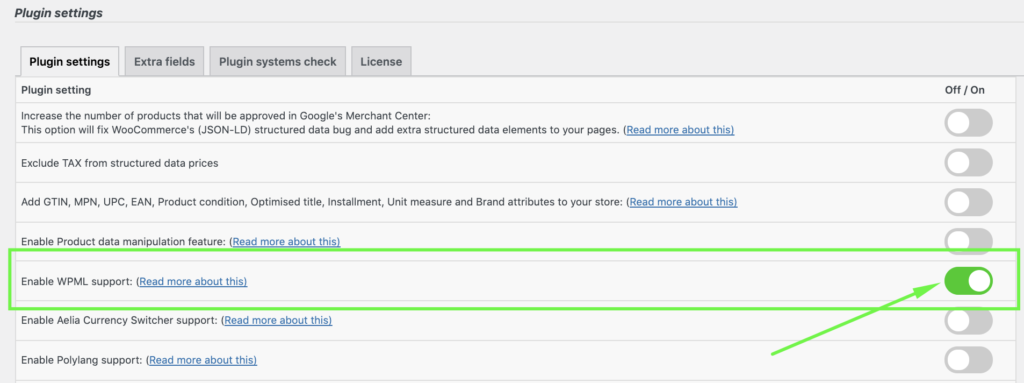
Pour activer la prise en charge de WPML Multilingual & Multicurrency for WooCommerce, il vous suffit de l'activer dans la section des paramètres du plugin, comme ceci :
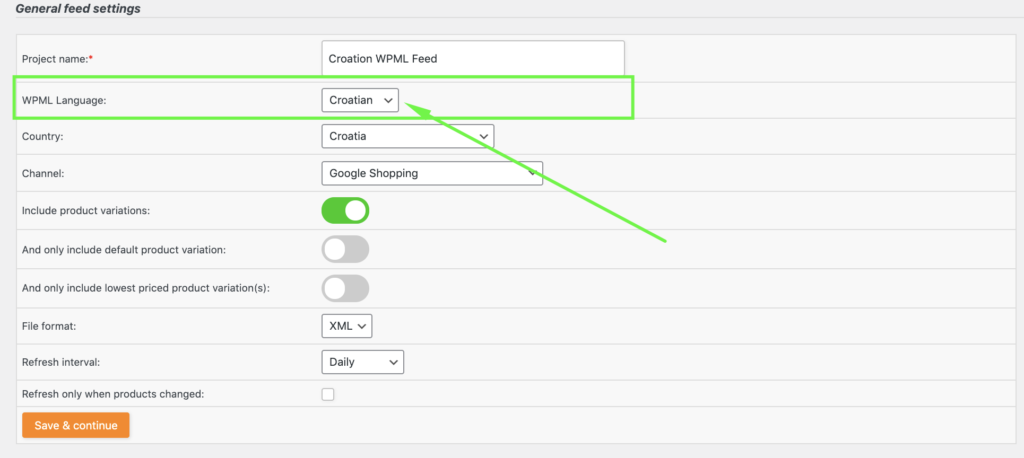
Lors de la création de votre flux de produits, vous remarquerez maintenant cette option supplémentaire pour sélectionner la langue pour laquelle vous souhaitez créer un flux de produits :
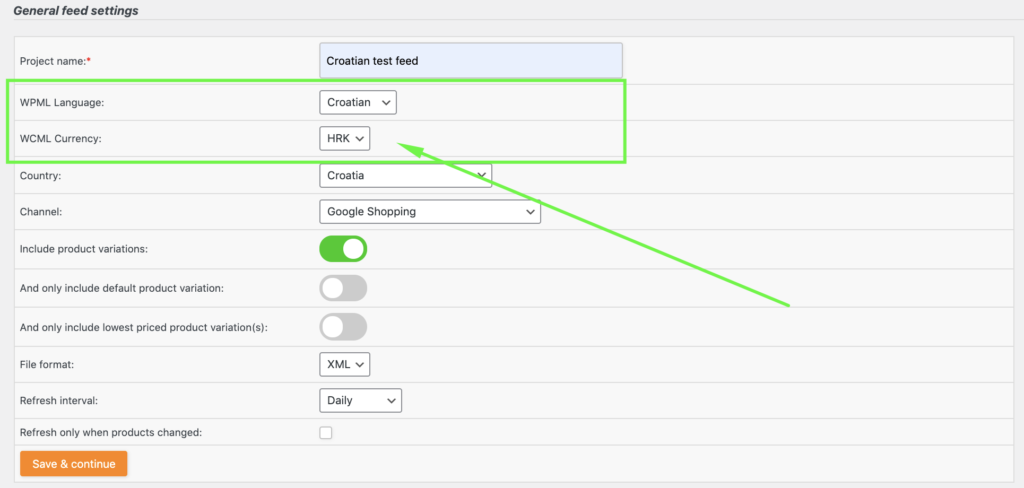
Si vous avez également installé le plugin WPML Multilingual & Multicurrency for WooCommerce et configuré plusieurs devises, l'écran ci-dessus vous proposera également un menu déroulant dans lequel vous pourrez sélectionner la devise à utiliser dans votre flux de produits. Comme ceci :
Les étapes suivantes pour configurer votre flux ne diffèrent en rien de la création d'un flux de produits sans prise en charge de WPML/WPML Multilingual & Multicurrency for WooCommerce. Le plugin s'assurera automatiquement que la bonne langue et la bonne devise sont utilisées pour vos flux.
N'hésitez pas à contacter notre équipe de support si vous avez des questions concernant cette fonctionnalité.



Notre plugin ne prend en charge que WPML, pas Polylang.
Bonjour, j'utilise la devise dont j'ai besoin, mais elle affiche toujours une devise différente dans le flux. Pourquoi ?
Salut Barbara, envoie-nous un ticket depuis ton compte Mon Compte et nous t'aiderons :)