
If your store sells in multiple languages, you want product feeds that match each language, not mixed translations. This guide walks you through installing and configuring the Product Feed Translation Addon, a separate AdTribes plugin that adds multilingual feed support to Product Feed Pro for WooCommerce.
Product Feed Elite is optional. You only need it if you use Elite-specific channels or features. The Translation Addon itself depends on Product Feed Pro and WooCommerce, as described in Requirements.
Once the addon is active, you can align feed titles, descriptions, URLs, and language options with each language your channels expect.
What the addon does
The addon connects Product Feed Pro (the core feed engine) to WPML, Polylang, or TranslatePress. It adds feed data filters, language fields in feed settings, category handling, and related hooks so each feed can target one language.
The addon ships its own integration classes. If Product Feed Elite is also installed, the addon takes over the multilingual hooks so Elite does not load overlapping WPML, Polylang, or TranslatePress code, which avoids duplicate hooks and keeps one supported path for multilingual feeds.
When you need the addon
Install the Product Feed Translation Addon when:
- You run Product Feed Pro for WooCommerce with WooCommerce, and
- You use WPML, Polylang, or TranslatePress for products or URLs, and
- You want each feed to use the right language for product data, links, and settings.
When active, the addon automatically detects supported translation plugins and loads the appropriate integration. This lets you select the language for each feed without additional configuration.
When you do not need the addon
You do not need the addon when:
- Your store uses one language only, or
- You do not run WPML, Polylang, or TranslatePress with WooCommerce.
Plan requirement
Translation compatibility through the Product Feed Translation Addon is included with Plus and Business AdTribes plans, so your account needs one of those plans to download the addon ZIP and to receive a valid Translation Addon license key.
If you are unsure which plan you have, check your subscription in My Account or review the current tiers on the pricing page. For questions about upgrading, contact AdTribes support.
Requirements
Before you install, confirm:
- Your AdTribes subscription is Plus or Business, so you can access the addon download and license (see Plan requirement above).
- You have WooCommerce installed and active.
- You have Product Feed Pro for WooCommerce installed, active, and up to date. The addon needs Product Feed Pro 13.5.3 or newer.
- You have set up your multilingual plugin (WPML, Polylang, or TranslatePress).
Optional: Install and activate Product Feed Elite if your workflow uses Elite-specific feeds or settings.
If WooCommerce or Product Feed Pro is missing or too old, the addon shows an admin notice and skips loading integrations.
Installation and activation
- Download Product Feed Translation Addon from your AdTribes account (where you get other AdTribes plugins).
- In WordPress, open Plugins → Add New → Upload Plugin, pick the ZIP, then click Install Now.
- Click Activate Plugin.
After you activate, the addon hooks in at the right time so WooCommerce and Product Feed Pro load first.
License activation
The Product Feed Translation Addon requires its own license key, separate from Product Feed Elite or other AdTribes products. This license is included with Plus or Business plans.
For the full license activation steps, see How to activate your Product Feed Translation Addon license.
The addon adds a Translation Addon tab to the Product Feed Pro license page, letting you manage Product Feed Pro, Product Feed Elite, and Translation Addon licenses in one place.
Basic setup: selecting a language for your feeds
The addon extends Product Feed Pro; it does not replace your main feed plugin. It hooks into Product Feed Pro filters and actions, so multilingual data flows into the feed file. If Product Feed Elite is active, Elite still owns Elite-only channel options, rules, and schedules; the addon supplies the translation layer.
Step 1: Install and activate your translation plugin
- In your WordPress admin, go to Plugins → Add New.
- Install and activate one of the supported translation plugins: WPML, Polylang, or TranslatePress.
- Configure at least one language in the plugin before proceeding.
Once the plugin is active, the Product Feed Translation Addon automatically detects it and enables the corresponding integration for your feeds. No additional configuration is required.
Step 2: Create or edit a feed and choose the language
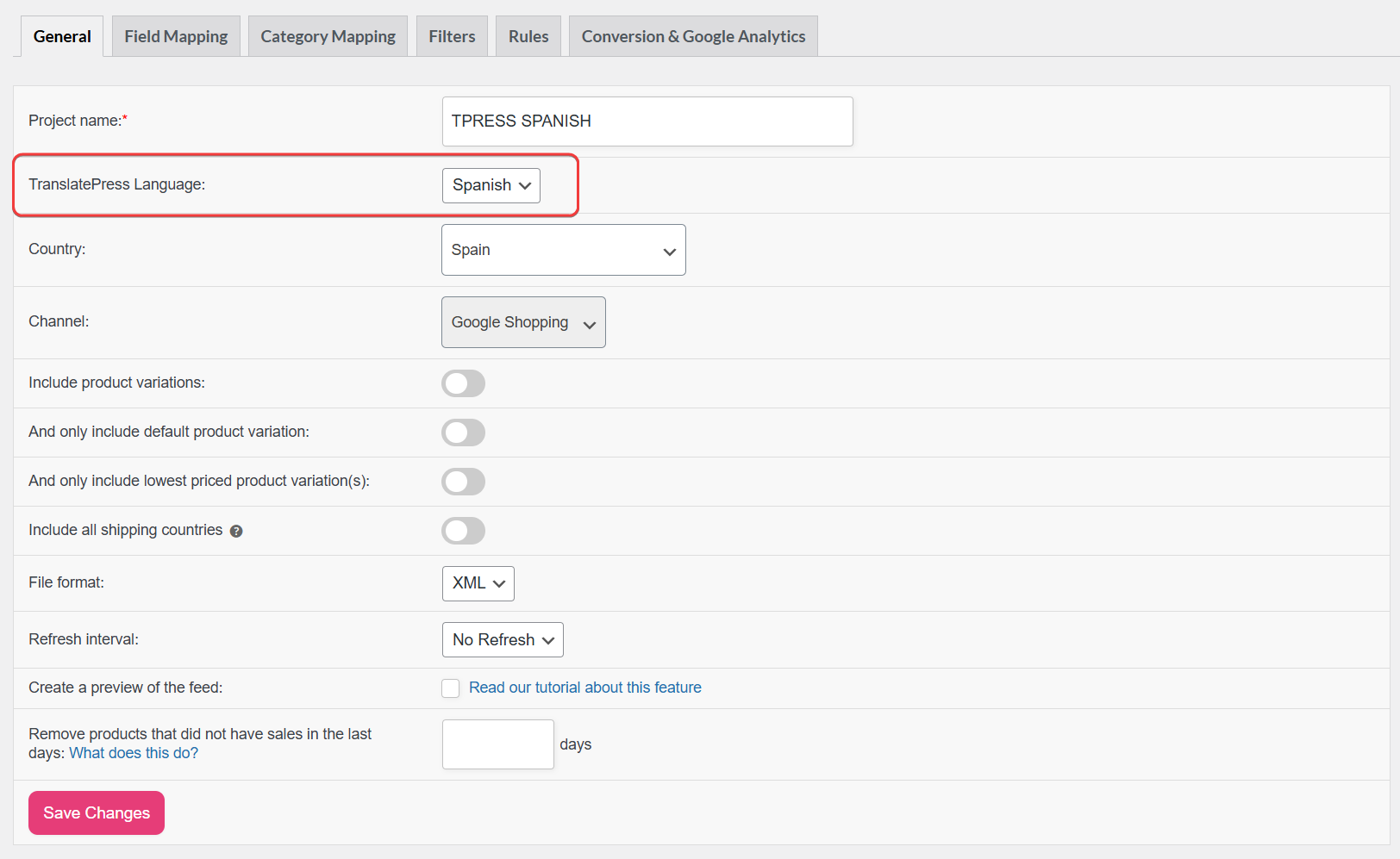
When a supported translation plugin is active, the addon adds a Language field to the feed settings automatically.
- Go to Product Feed in your WordPress admin (this opens the feeds list).
- Create a new feed or open an existing one.
- Open the General tab.
- In the Language field, select the language your sales channel expects. The field name varies by plugin — for example, Language (WPML), Polylang language, or TranslatePress Language.
- Continue configuring the feed as usual and click Save.
Each feed should represent one language. For multiple languages, duplicate the feed and assign a different language to each version.
Guides for each translation plugin
- If you use Polylang, see How to sync Polylang with the Product Feed Translation Addon.
- Learn how to connect TranslatePress in How to use TranslatePress with the Product Feed Translation Addon.
- For WPML, follow How to set up WPML with the Product Feed Translation Addon.
Supported translation plugins
The Product Feed Translation Addon integrates with popular WordPress multilingual plugins. This lets you generate language-specific product feeds, ensuring each feed contains data from the selected language only.
The product feed plugin generates the feed file. The translation plugin handles the translations — product titles, descriptions, URLs, and taxonomy terms.
The addon automatically detects supported translation plugins and loads the appropriate integration when they are active.
Currently, the following plugins are supported:
| Plugin | How it affects your product feeds |
|---|---|
| WPML | You can generate a feed for a specific WPML language. Product titles, descriptions, URLs, and other translated fields are pulled from the selected language version. |
| Polylang | Each feed can target a Polylang language so that product and taxonomy data in the feed match the selected language. |
| TranslatePress | Feeds can be generated for a specific TranslatePress language using the translations configured for that locale. |
Example use case
You run a WooCommerce store in English and German using WPML and advertise on Google Shopping. You use Product Feed Pro (and optionally Product Feed Elite for channel templates and scheduling).
- Install the Product Feed Translation Addon and activate its license.
- The addon automatically detects WPML and loads the appropriate integration.
- Create a Google Shopping feed (or duplicate an existing feed).
Set one feed to English and another to German using the Language (WPML) field. - Submit each feed URL to the matching Google Merchant Center feed or country configuration.
Each feed then contains product titles, descriptions, URLs, and other data in the correct language, without mixing translations in a single file.
Troubleshooting and common issues
If Product Feed Pro is below version 13.5.3, update it to meet the minimum requirement. The addon will not load its integrations until the required dependencies are available.
Next, verify that a supported translation plugin (WPML, Polylang, or TranslatePress) is installed and active.
When a supported plugin is detected, the addon automatically loads the appropriate integration and adds the Language field to the feed settings.
Each feed should represent one language only. If you need feeds for multiple languages, duplicate the feed and assign a different language to each version.
Enter your License Key and Activation Email, then click Activate License.
If activation fails:
– Confirm your AdTribes plan is Plus or Business
– Ensure the license key was copied from the correct AdTribes account
– Check that your server allows outgoing connections to adtribes.io
If the issue persists, contact AdTribes support.
What’s next
- Finish mapping fields for each language-specific feed, then generate the feed and confirm the file in a browser or text editor.
- Use the Feed Validator or your channel’s validation tools before you submit URLs to Google, Meta, or other platforms.
- Read the channel guides that match your setup. For example, How to Set Up a Google Shopping Product Feed and the integration articles linked under Basic setup.
FAQ
Need help?
If you have a question or run into any issues, we’re here to help.

