
Facebook- und Instagram-Shopping-Anzeigen laufen über Produktkataloge – strukturierte Datendateien, die Meta genau sagen, was Sie verkaufen, wie viel es kostet und wohin Käufer gesendet werden sollen, wenn sie klicken. Ohne einen gut konfigurierten Katalog erscheinen Ihre Produkte entweder gar nicht in Anzeigen oder werden mit falschen Details angezeigt, was Ihre Klickrate und Ihren Return on Ad Spend beeinträchtigt.
Product Feed Pro und Product Feed Elite generieren Ihren Meta-Katalog-Feed automatisch aus Ihren WooCommerce-Produktdaten und halten ihn nach einem von Ihnen festgelegten Zeitplan synchron. Erstellen Sie den Feed einmal, geben Sie Meta die URL, und das Plugin kümmert sich nachfolgend um jede Aktualisierung.
Springen zu:
- Was Sie vor dem Start benötigen
- Teil 1: Erstellen Sie Ihren Feed im Plugin
- Teil 2: Verbinden Sie Ihren Feed mit dem Meta Commerce Manager
- Fehlerbehebung bei häufigen Problemen
- Häufig gestellte Fragen
Was Sie vor dem Start benötigen
- Product Feed Pro oder Product Feed Elite installiert und in Ihrem WooCommerce-Shop aktiviert. Der Facebook DRM-Kanal ist in beiden Plänen verfügbar.
- Ein Meta Business Manager-Konto unter business.facebook.com. Hier befindet sich Ihr Katalog.
- Eine Facebook-Seite oder ein Instagram-Geschäftsprofil, das mit Ihrem Business Manager verbunden ist. Meta benötigt mindestens ein verbundenes Asset, bevor Sie Kataloganzeigen schalten können.
- Produkte mit vollständigen Daten — Titel, Preis, Lagerbestand und mindestens ein Bild. Unvollständige Produkte werden während der Feed-Überprüfung abgelehnt.
Teil 1: Erstellen Sie Ihren Feed im Plugin
Um den Assistenten zur Feed-Erstellung zu öffnen:
- Gehen Sie in Ihrem WordPress-Dashboard zu Produkt-Feed → Feeds verwalten.
- Klicken Sie auf Neuen Feed hinzufügen. Alternativ gehen Sie direkt zu Produkt-Feed → Feed erstellen.
Schritt 1: Allgemeine Einstellungen
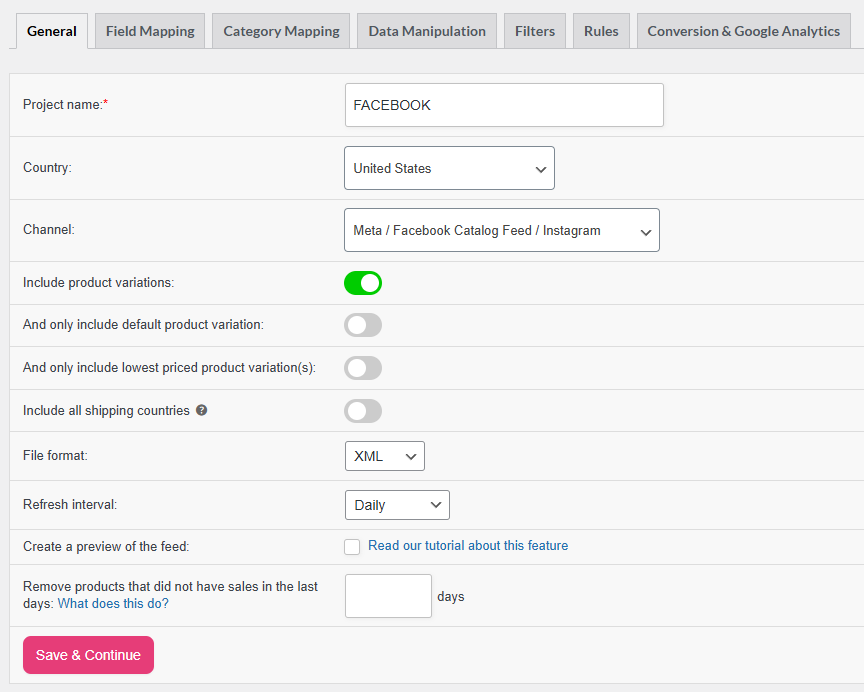
Der Tab Allgemein steuert, welche Produkte im Feed enthalten sind, wie die Feed-Datei formatiert wird und wie oft sie neu generiert wird. Detaillierte Anweisungen finden Sie im Vollständigen Leitfaden zu den allgemeinen Feed-Einstellungen.
Konfigurieren Sie die grundlegenden Optionen für Ihren Feed:
| Einstellung | Empfehlung |
|---|---|
| Projektname | Geben Sie dem Feed einen eindeutigen Namen (z. B. META_US) |
| Land | Ihr Zielland auswählen |
| Kanal | Wählen Sie Meta / Facebook-Katalog-Feed / Instagram |
| Produktvarianten einschließen | Aktivieren — Meta benötigt jede Variante (Größe, Farbe) als separates Element |
| Und nur die Standardproduktvariation einschließen | Optional — verwenden Sie dies, wenn Sie nur die Standardvariante jedes Produkts einschließen möchten |
| Nur die am günstigsten bewertete(n) Produktvariante(n) einschließen | Optional — nur verwenden, wenn Sie eine Variante pro Produkt bewerben möchten |
| Dateiformat | XML (empfohlen) |
| Aktualisierungsintervall | Täglich für die meisten Shops; stündlich, wenn sich Ihr Lagerbestand häufig ändert |
| Vorschau des Feeds erstellen | Aktivieren, um vor der ersten Übermittlung einen Test-Feed zu generieren |
Klicken Sie auf Speichern & Weiter , um zur Feldzuordnung zu gelangen.
Schritt 2: Feldzuordnung
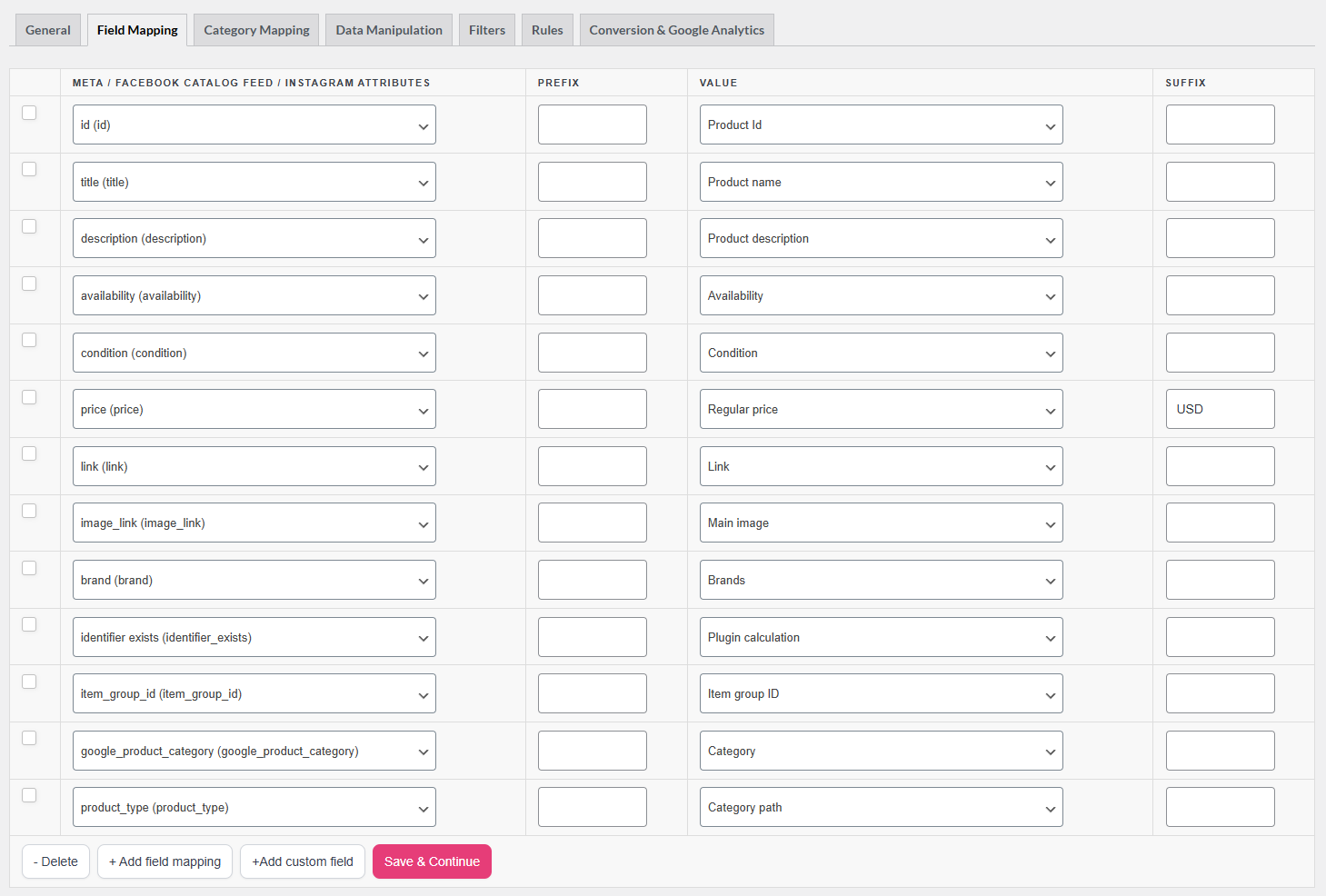
Dies ist der wichtigste Schritt. Meta lehnt Produkte ab, bei denen erforderliche Felder fehlen oder falsche Werte verwendet werden. Das Plugin ordnet die gängigsten Felder vorab zu, aber überprüfen Sie jedes erforderliche Feld, bevor Sie speichern.
Erforderliche Felder
| Meta-Attribut | Vorgeschlagene Zuordnung | Hinweise |
|---|---|---|
| id | Produkt-ID | Muss eindeutig und stabil sein. Ändern Sie ihn nach der Einreichung nicht. Meta verwendet ihn zur Verfolgung der Artikelhistorie. |
| Titel | Produktname | Unter 65 Zeichen halten; längere Titel werden bei den meisten Anzeigenplatzierungen abgeschnitten. Kein reiner Großbuchstaben-Text, kein Werbetext. |
| Beschreibung | Produktbeschreibung | Nur einfacher Text, kein HTML oder Links. Muss sich vom Titel unterscheiden, bis zu 9.999 Zeichen. |
| Verfügbarkeit | Verfügbarkeit | Wird automatisch dem WooCommerce-Lagerstatus zugeordnet. Akzeptierte Werte: auf Lager, nicht auf Lager. |
| Zustand | Zustand | Verwenden Sie Statischen Wert und geben Sie neu für die meisten Shops ein. Akzeptierte Werte: neu, generalüberholt, gebraucht. |
| Preis | Regulärer Preis | Format: 29,99 USD. Verwenden Sie immer einen Punkt als Dezimaltrennzeichen. Verwenden Sie niemals Währungssymbole. |
| Link | Link | Vollständige Produkt-URL. Muss auf eine Live-Seite Ihrer Domain auflösen. |
| image_link | Hauptbild | Mindestens 500×500 Pixel. Meta empfiehlt 1024×1024 Pixel. Maximal 8 MB. Quadratische Bilder schneiden bei Anzeigenplatzierungen am besten ab. |
| Marke | Marken | Wenn Sie das WooCommerce-Markenattribut verwenden, ordnen Sie es hier zu. Andernfalls verwenden Sie Statischen Wert und geben Sie Ihren Geschäftsnamen ein. |
Varianten-Gruppierung
| Meta-Attribut | Vorgeschlagene Zuordnung | Hinweise |
|---|---|---|
| item_group_id | Artikelgruppen-ID | Gruppiert alle Varianten desselben Produkts zusammen (z. B. dasselbe Hemd in verschiedenen Größen). Das Plugin berechnet dies automatisch aus der übergeordneten Produkt-ID. |
Meta verwendet item_group_id , um die richtige Variante in Anzeigen anzuzeigen, basierend darauf, was der Käufer angesehen hat. Ordnen Sie dieses Feld immer für variable Produkte zu.
Produktidentifikation
| Meta-Attribut | Vorgeschlagene Zuordnung | Hinweise |
|---|---|---|
| gtin | Globale eindeutige ID (GTIN, UPC, EAN oder ISBN) | Die globale Handelsartikelnummer (GTIN, UPC, EAN oder ISBN) des Produkts. Verwenden Sie nur den vom Hersteller zugewiesenen Wert. EU-Shops müssen für alle Markenprodukte eine GTIN angeben. |
| mpn | Herstellerteilenummer | Herstellerteilenummer. Verwenden Sie diese, wenn Sie keine GTIN haben. |
| identifier_exists | Plugin-Berechnung | Das Plugin legt dies automatisch fest. Es teilt Meta mit, ob eine GTIN oder MPN für das Produkt vorhanden ist. |
Setzen Sie für handgefertigte oder kundenspezifische Produkte ohne GTIN oder MPN identifier_exists mit einem Statischen Wert auf false.
Empfohlene optionale Felder
Diese Felder sind nicht zwingend erforderlich, verbessern aber die Anzeigenzielgruppenansprache und verringern das Risiko von Ablehnungen.
| Meta-Attribut | Vorgeschlagene Zuordnung | Hinweise |
|---|---|---|
| google_product_category | Google-Produktkategorie | Verwenden Sie die Taxonomie von Google. Muss mindestens zwei Ebenen tief sein, z. B. Bekleidung & Accessoires > Kleidung. Akzeptiert den vollständigen Pfad oder die numerische Kategorie-ID. |
| product_type | Kategoriepfad | Ihre WooCommerce-Kategorienstruktur (z. B. Herren > Jeans > Slim Fit). Nicht aus Googles Taxonomie, verwenden Sie Ihre eigene. |
| fb_product_category | — | Metas eigene Taxonomie. Verwenden Sie diese neben google_product_category , wenn Sie Meta-spezifische Produktkategorien ansprechen möchten. |
| zusätzlicher_bildlink | Zusätzliches Bild | Bis zu 20 zusätzliche Produktbilder. Karussellanzeigen und Shop-Listings verwenden diese. |
| sale_price | Verkaufspreis | Gleiches Format wie price. Mappen Sie auf Ihr WooCommerce-Verkaufspreisfeld. |
| sale_price_effective_date | Gültigkeitsdatum des Verkaufspreises | ISO 8601-Datumsbereich für das Verkaufsfenster. Format: 2025-12-01T00:00-08:00/2025-12-26T23:59-08:00. |
| Farbe | Farbe | Nur Wortbeschreibungen (z. B. Waldgrün). Keine Hex-Codes. |
| Größe | Größe | Wort, Abkürzung oder Zahl mit einer Einheit (z. B. UK 10). Fügen Sie nicht das Wort „Größe“ hinzu. |
| Geschlecht | Geschlecht | Akzeptierte Werte: weiblich, männlich, unisex. |
| age_group | Altersgruppe | Akzeptierte Werte: Erwachsene, Alle Altersgruppen, Teenager, Kinder, Kleinkind, Säugling, Neugeborenes. |
| Material | Material | z. B. Baumwolle, Leder. Bis zu 100 Zeichen. |
| Muster | Muster | z. B. Plaid, Floral, Einfarbig. Bis zu 100 Zeichen. |
| custom_label_0 bis custom_label_4 | — | Freitextfelder für Ihre eigene Kampagnen-Segmentierung (z. B. Sommerverkauf, Hohe Marge, Ausverkauf). Meta zeigt diese nicht in Anzeigen an – Sie verwenden sie im Anzeigencenter, um Produktsets zu erstellen. |
Für feste Werte, wie Zustand oder Geschlecht, klicken Sie auf das Dropdown-Menü für den Feldtyp, wählen Sie Statischer Wert und geben Sie den Wert direkt ein. Sie können jederzeit weitere optionale Felder hinzufügen, indem Sie auf + Feldzuordnung hinzufügen klicken.
Klicken Sie auf Speichern & Fortfahren, um zur Kategoriezuordnung zu gelangen.
Schritt 3: Kategoriezuordnung
Ordnen Sie Ihre WooCommerce-Kategorien der Google-Produkttaxonomie zu (Meta verwendet die Google-Taxonomie für google_product_category). Links sehen Sie Ihre Shop-Kategorien; rechts geben Sie mindestens vier Zeichen ein, um Taxonomie-Vorschläge zu erhalten. Ordnen Sie so viele Kategorien wie möglich zu. Nicht zugeordnete Kategorien lösen mit höherer Wahrscheinlichkeit Warnungen im Commerce Manager aus.
Klicken Sie auf Speichern & Fortfahren, um zu den Filtern zu gelangen.
Schritt 4: Filter (optional)
Filter ermöglichen es Ihnen, Produkte basierend auf Bedingungen einzuschließen oder auszuschließen – zum Beispiel, um Produkte, die nicht auf Lager sind, auszuschließen oder nur Produkte über einem bestimmten Preis einzuschließen. Eine vollständige Anleitung finden Sie unter Erstellen von Filtern für Ihren Produkt-Feed.
Schritt 5: Regeln (optional)
Regeln ermöglichen es Ihnen, Produktdaten dynamisch mit WENN/DANN-Logik zu ändern. Häufige Anwendungsfälle sind:
- Festlegen eines Fallback-Werts, wenn ein Feld leer ist (z. B.
Beschreibungder Kurzbeschreibung zuordnen, wenn die Langbeschreibung leer ist) - Standardisieren von Farbnamen (z. B.
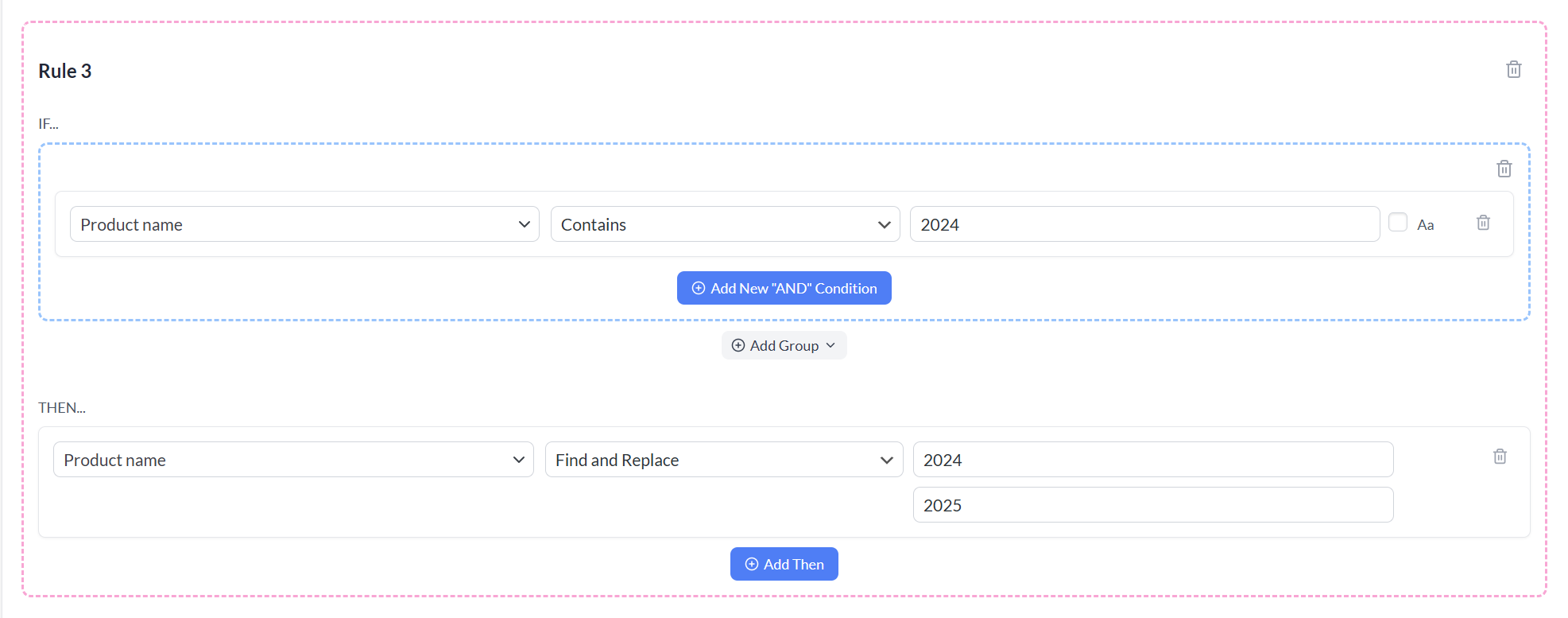
blk→Black) - Hinzufügen von Text zu Titeln, um die Klickrate von Anzeigen zu verbessern
Details finden Sie unter Erstellen von Regeln.
Schritt 6: Conversion & Google Analytics
Verwenden Sie die Registerkarte „Conversion & Google Analytics“, um UTM-Parameter zu Ihren Produktlinks hinzuzufügen. Dies ermöglicht Google Analytics, Traffic und Conversions bestimmten Kampagnen, Anzeigengruppen und Anzeigen zuzuordnen. Schalten Sie Google Analytics-Tracking aktivieren ein und füllen Sie dann Ihre Kampagnenparameter aus:
- utm_source:
facebook - utm_medium:
cpc - utm_campaign: Ihr Kampagnenname oder der Feed-Titel
- utm_content: Name der Anzeigengruppe oder Produktgruppe
Eine detaillierte Anleitung finden Sie unter Konfigurieren von UTM-Tracking-Parametern für Produkt-Feeds.
Klicken Sie auf Produkt-Feed generieren, um Ihre Feed-Datei zu erstellen.
Schritt 7: Kopieren Sie Ihre Feed-URL
Sobald der Feed generiert ist, gehen Sie zu Produkt-Feed → Feeds verwalten , um ihn aufzulisten. Von hier aus können Sie:
- Klicken Sie auf das Symbol URL kopieren neben der Feed-URL – Sie werden diese in den Meta Commerce Manager einfügen.
- Feed aktualisieren — löst eine sofortige Neuerstellung der Feed-Datei aus.
- Feed bearbeiten — öffnet den Feed-Assistenten erneut, um Einstellungen zu ändern.
- Feed duplizieren — erstellt eine Kopie dieses Feeds mit denselben Einstellungen.
Teil 2: Verbinden Sie Ihren Feed mit dem Meta Commerce Manager
Schritt 1: Commerce Manager aufrufen
Gehen Sie zur Seite Meta for Business und wählen Sie Ihr Unternehmenskonto aus dem Dropdown-Menü oben links aus.
Schritt 2: Katalog erstellen oder öffnen
Wenn Sie noch keinen Katalog haben, klicken Sie auf Los geht's oder navigieren Sie zu Kataloge im linken Menü. Klicken Sie auf Produkt/Katalog hinzufügen, wählen Sie E-Commerce als Katalogtyp und schließen Sie den Einrichtungsassistenten ab.
Wenn Sie bereits einen Katalog haben, öffnen Sie ihn aus der Kataloge -Liste.
Schritt 3: Fügen Sie Ihren Datenfeed hinzu
Klicken Sie in Ihrem Katalog auf Datenquellen in der linken Navigation und wählen Sie dann Daten-Feeds. Klicken Sie auf Daten-Feed hinzufügen.
Schritt 4: Wählen Sie „URL verwenden“
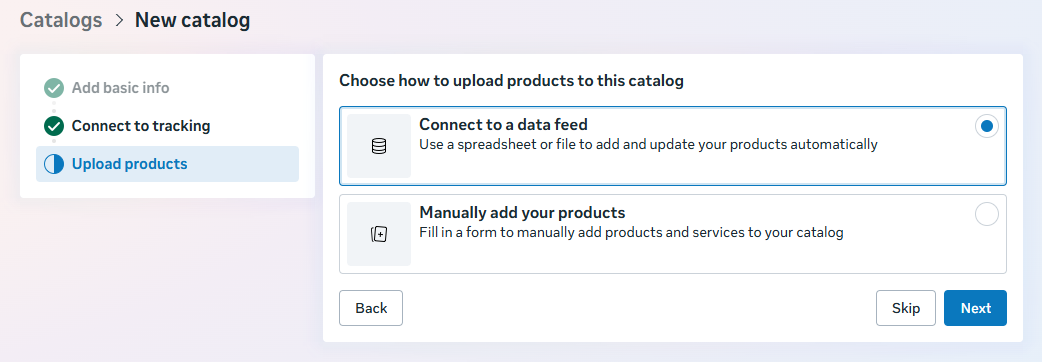
Wählen Sie URL verwenden – dies ist die empfohlene Option für WooCommerce-Shops. Meta ruft Ihren Feed automatisch nach einem Zeitplan erneut ab, sodass Ihr Katalog ohne manuelle Arbeit synchron bleibt.
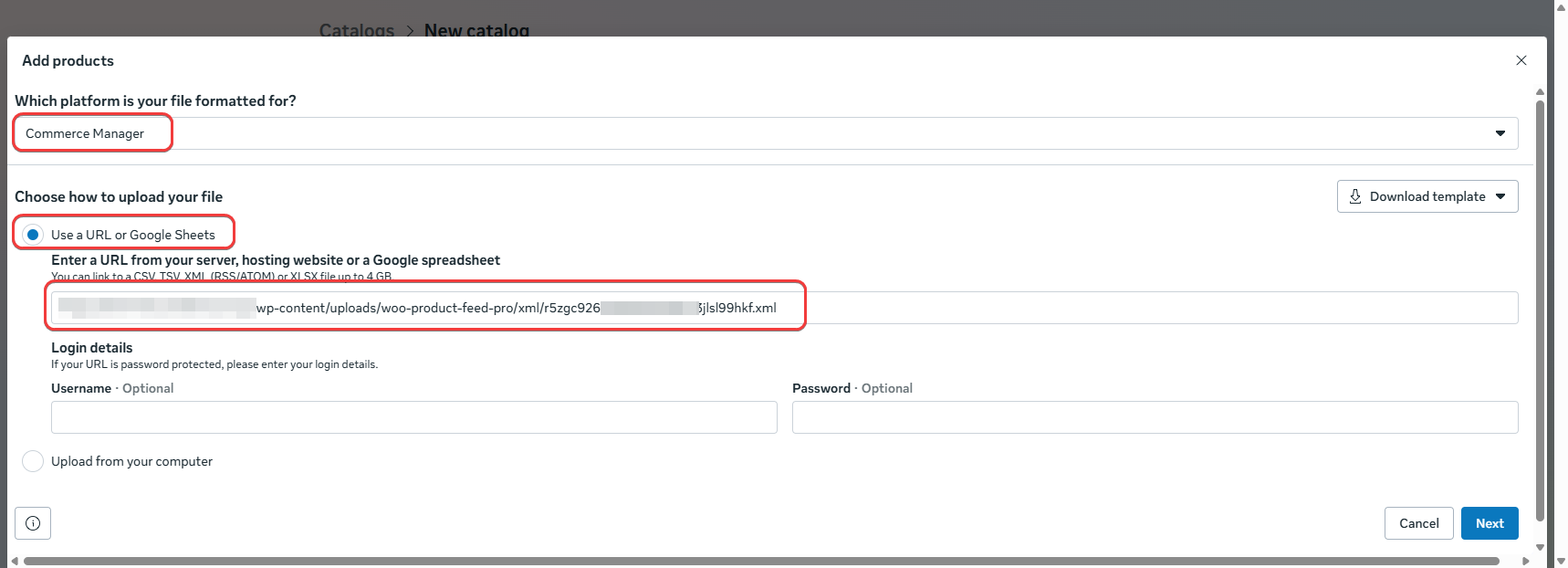
Fügen Sie Ihre Product Feed Pro Feed-URL in das Feld Geben Sie die URL ein, auf der Ihre Datei gehostet wird ein.
Schritt 5: Legen Sie einen Abrufplan fest
Wählen Sie aus, wie oft Meta Ihren Feed erneut abrufen soll:
- Stündlich — Am besten für Shops mit häufigen Preis- oder Lagerbestandsänderungen
- Täglich — Die richtige Wahl für die meisten WooCommerce-Shops
- Wöchentlich — Nur für sehr statische Kataloge geeignet
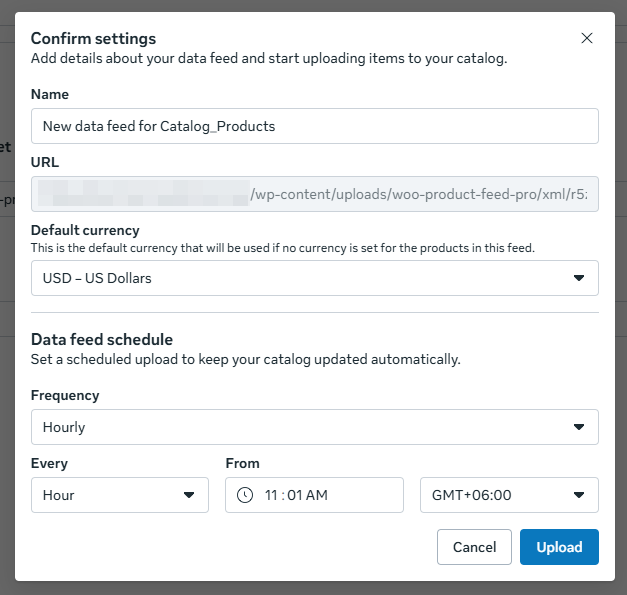
Legen Sie Ihre bevorzugte Abrufzeit (angezeigt in UTC) fest und klicken Sie auf Weiter.
Schritt 6: Speichern und den ersten Upload auslösen
Klicken Sie auf Hochladen. Meta führt sofort den ersten Abruf durch und beginnt mit der Verarbeitung Ihrer Artikel. Die erstmalige Verarbeitung dauert 15–60 Minuten, abhängig von der Kataloggröße. Eine Zusammenfassung der hochgeladenen Artikel, Warnungen und Fehler wird im Dashboard Datenquellen angezeigt.
Schritt 7: Diagnosen überprüfen
Öffnen Sie nach der Verarbeitung den Tab Diagnosen in Ihrem Katalog. Hier sehen Sie:
- Abgelehnte Artikel — Produkte, bei denen erforderliche Felder fehlen oder ungültige Werte vorhanden sind
- Warnungen — Produkte mit fehlenden empfohlenen Feldern oder Bildproblemen
- Aktive Elemente — Produkte, die die Überprüfung bestanden haben und für Anzeigen in Frage kommen
Beheben Sie alle Fehler in Ihren WooCommerce-Produktdaten oder Feed-Einstellungen und lösen Sie dann eine manuelle erneute Abfrage in Commerce Manager aus oder warten Sie auf die nächste geplante Abfrage.
Schritt 8: Katalog mit Anzeigen-Assets verbinden
Sobald Ihr Katalog gefüllt ist, können Sie ihn mit Folgendem verbinden:
- Facebook Shop / Instagram Shopping — um Produkte in Ihrem Shop-Storefront anzuzeigen
- Advantage+ Kataloganzeigen — Erstellen Sie im Ads Manager eine Kampagne mit dem Ziel Katalogverkäufe und wählen Sie Ihren Katalog aus
- Dynamische Retargeting-Anzeigen — zeigen Sie Kunden, die Ihre Website besucht haben, zuvor angesehene Produkte an
Fehlerbehebung bei häufigen Problemen
brand, condition und availability) zugeordnet oder als statische Werte festgelegt sind.identifier_exists auf false. Siehe So beheben Sie GTIN-Fehler.29,99 USD formatiert sind – eine Zahl, ein Leerzeichen, dann der ISO-Währungscode. Keine Symbole, keine Kommas als Dezimaltrennzeichen.Häufig gestellte Fragen
quantity_to_sell_on_facebook?Benötigen Sie Hilfe?
Wenn Sie eine Frage haben oder auf Probleme stoßen, sind wir für Sie da.
- Premium-Nutzer: Support-Ticket eröffnen
- Kostenlose Nutzer: Besuchen Sie unser Community-Forum
Die neuesten Meta-Kataloganforderungen finden Sie im Meta Business Help Center.

